


Thursday, June 28, 2007
Gorgeous Photo Layouts with LumaPix's FotoFusion v4: The Review
Posted by Jason Dunn in "SOFTWARE" @ 07:00 AM
Once You've Created Your Masterpiece...
After you've finished your project, there are several options: you can export it, email it, or publish it. Each option is highly customizable: the export option allows you to save your project as BMP, GIF, JPEG, or PNG files. If you have the Extreme version of the software, you can also export as PSD and PDF and use ICC profile tagging. Resolution of the exported file is limited based on what version of the software you bought: Essential is limited to 2000 x 2000 pixels (4 megapixels), Enhanced is limited to 3900 x 5700 pixels (22 megapixels), and Extreme offers unlimited resolution export.
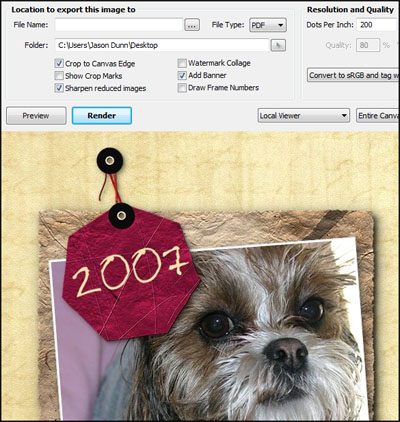
Figure 11: The export option screen.
This is one of the areas where I think LumaPix limits the low-end versions a bit too much: since Essentials is limited to 2000 x 2000, on a 12 inch by 12 inch page size (which is typical for scrapbooks) you'd only be getting 166 ppi on your print if you upload them to a photo printing service. If you print the files on a local printer, thankfully the software will output up to a 12" x 12" page at 300 dpi. If you want to print up to 13" x 19" at 300 dpi, you'll need the Enhanced version of the software. The other differences between the versions can be found on this FotoFusion page. I originally bought the product to do those big 16 x 20" vacation collages, and if I wanted to do that today at the same resolution (7500 x 9375) I'd need to spend $299 USD - which is a lot for a personal print. I wish output resolution wasn't the differential point that LumaPix chose for the different versions of product.
If you use a template when you render the file be prepared for a 5+ minute wait as it downloads the high-resolution files for the template. I tried to render a JPEG from a template and after waiting for quite a while for the download of the high-resolution This again limits things severely for offline product creation using templates - don't these LumaPix guys use laptops in offline scenarios? The workaround here would be to postpone the export until you have connectivity.
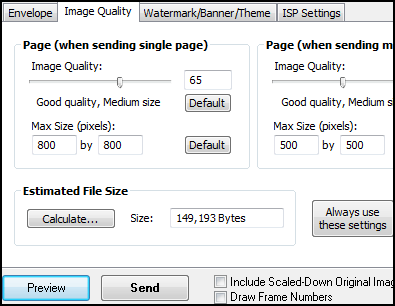
Figure 12: The email option screen.
There's an email tab that allows you to send your creations directly via email - the software even uses the LumaPix email server so there's no need to do any complex configuration, although you can override the settings and use your own settings if you want. The software will import your local address book - I tested it with Windows Mail, I'm not sure about Outlook. The image quality settings allow for a great deal of tweaking, including image compression quality, image size, sharpening of reduced images, watermarking, selecting the dpi and exact resolution of the image, JPEG compression quality, and a few other advanced features such as adding a watermark and putting a banner at the bottom of the email. Some of the advanced features won't be there depending on the version of the software you have.
You can also publish the image in JPEG (and only in JPEG) to a Web server - presumably using FTP - or to a local file. You can control the JPEG compression quality and image size, with separate controls for multi-page projects.









