


Monday, February 15, 2010
HP's DreamScreen 100: Plagued With Limitations, But Filled With Promise
Posted by Jason Dunn in "Digital Home Hardware & Accessories" @ 07:00 AM
The Screen: Wow!
The 10.2 inch screen is 800 x 480 resolution - commonly referred to as WVGA - which happens to be a 15:9 aspect ratio. The off-axis viewing angles are fantastic; looking at the screen almost sideways still gives you a surprisingly good picture. The screen is, in a word, gorgeous - and perfect for sitting on a bookshelf or desk. HP doesn't reveal what screen technology they're using, but in looking at a wide variety of my photos - which are tweaked on a colour corrected monitor - they all looked fantastic. I was initially unsure if the 800 x 480 resolution on a 10.2 inch screen was going to be sufficient, but photos looked superb. HP really hit the ball out of the park with their choice of screens.
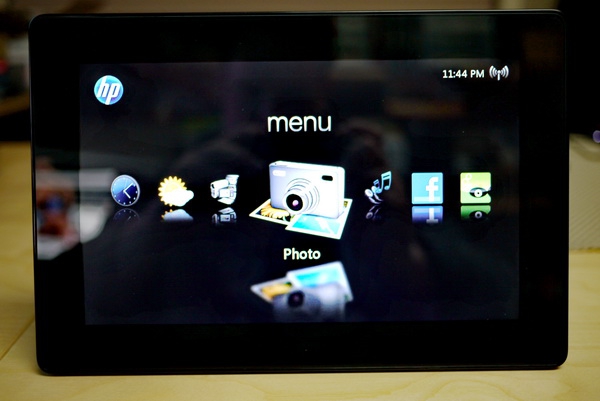
Figure 9: None of my pictures do the screen justice. It looks great.
The other hardware aspects - built-in WiFi, memory card reader, USB port - all worked flawlessly. The overall design aesthetic of the DreamScreen is killer - it's a minimalistic design that doesn't draw attention to itself unless it's displaying something. I'm not a fan of the extremely long metal support stand though - HP could have made it 50% shorter, but I suspect they were trying to make it hard to knock over. If it's on a shelf, how likely it is to get knocked over though?
It All Happens on the Home Screen
The core functions of the DreamScreen are found in each of the home screen icons:
Weather
It's unfortunately not intelligent enough to locate what city it's in, even after connecting to WiFi. This is a ridiculous oversight that HP should correct. It's also pretty silly to show me Toronto as the weather location after I've already told the DreamScreen I'm in the Alberta timezone. At any rate, once I configured it by looking up my city, the weather display was functional (showing me temperature, wind, "feels like", high and low for today, and a four-day future forecast). You can't add multiple cities and move back and forth between them; an unfortunate limitation and one that anyone who likes to travel will notice.
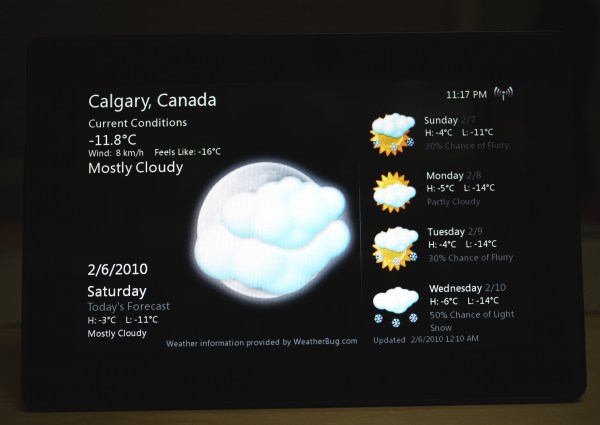
Figure 10: The Weather application.
Clock
The clock does what you'd expect, and perhaps a bit more. It can be configured to show a single time zone, two time zones, a clock with a calendar, or the clock with a photo that changes every five seconds. The clock + photo option is pretty cool. The clock can be digital or analog, and it also displays the day of the week, date, and time zone. You can set up to three different alarms, and each alarm can be configured to play the music on the device as the wake-up sound, or play "rock", "smooth jazz", or "jam" sounds.
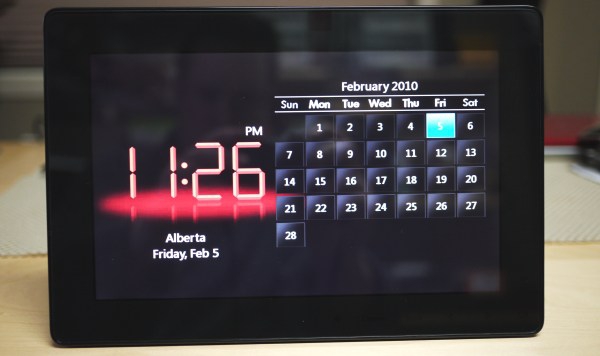
Figure 11: The Clock application.
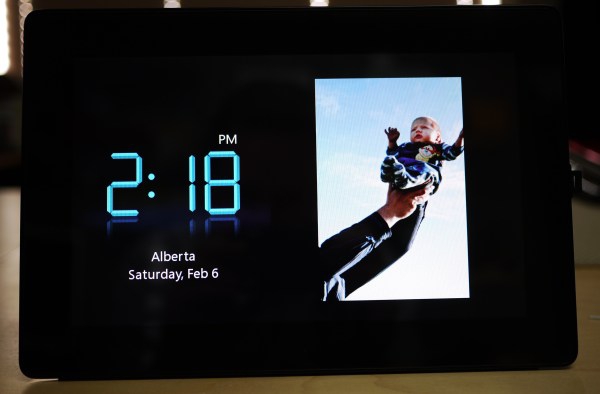
Figure 12: The Clock application with the clock + photo option set.
Calendar
The calendar displays a month view...and that's it. There are no options for multi-month display, and no options to sync with any online calendar services. If you need to know that February the 27th is a Saturday, this is where you'd look - but that's all it does.
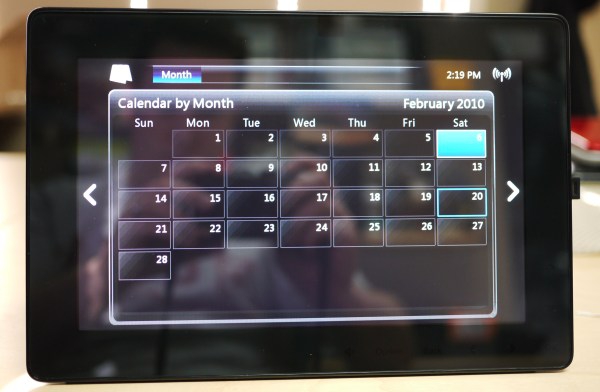
Figure 13: The Calendar application.









