


Tuesday, June 5, 2012
Adobe Photoshop Lightroom 4 Review
Posted by Lee Yuan Sheng in "Digital Home Software" @ 08:00 AM
Organising images can be a pretty multi-faceted thing. There are some photographers I know who have a complex system of keywords and hierarchies and what not. I just stick to labelling my images based on a simple set of keywords, and only add more if the shot is going to the stock agency (who typically wants these things labelled very thoroughly).
Keywording is an important part of managing photos, but it is too easy to go overboard with a billion keywords. Which is just as well, because I do not find Lightroom to be that quick if I need to input multiple keywords. The quick keyword system only accepts one word at a time, and there is no fast way to switch between quick keywords.
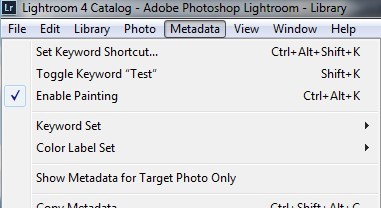
Figure 7: Adding keywords seems pretty simplistic in Lightroom.
The testing of the keyword functions is also when I realised that the Menu key on the keyboard does not bring up the right-click menu. Why?
Collections are another way to organise photos in Lightroom. Basically they work as advertised: A collection is just a named set of images. For me, I use collections to group images for show later. Typically they work as the keepers after a shoot. Also present are Smart Collections, which are Collections that select photos based on certain criteria. Since they work on similar attributes to that found in the filtering options, consider them a "saved" filter of sorts.
For those of you who use HDR techniques and shoot panoramas, the Stacking feature allows grouping of images into a single "stack", thus only taking up one space on the grid view and filmstrip. It makes the library look a lot neater, and also avoids the fun of having to search for the group of images again in the future. There is also the Auto-stack feature, which tries to stack images based on time, since (especially for HDR) such shots tend to be taken within fairly short intervals of time.
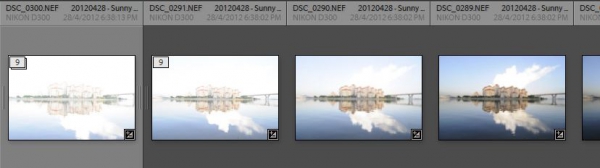
Figure 8: Two groups of stacked images side-by-side. The group of stacked images on the right has been expanded to show all the images in the stack.
What is missing, though, is what Idimager calls Versioning. Lightroom's approach is the creation of Virtual Copies, which, as the name suggests, are virtual copies of the original and allows you apply different adjustments to each photo while keeping only one physical photo on the drive, though it still creates the previews. This approach is not friendly to those who come from a different workflow (some of my photos already have three to four different versions), and I have no way of grouping them together. I suppose I can use Stacks instead in this case, as Lightroom does not seem to assign any other special functionality to Stacks or Virtual Copies. Adobe really wants you to use Lightroom for your entire workflow!
Another minor negative: keywords are only applied to the top image for both Virtual Copies and Stacks. The only way to do this for all the grouped images is to expand the group, select all the images that form the group and then enter the keywords. Not the fastest way to work!









