Tuesday, September 28, 2010
Photo Book Luxury: Picaboo's Ranch Style Book Reviewed
Posted by Jason Dunn in "Digital Home Printing" @ 07:00 AM
Finally! Let's Get Started
After I opted to build the book from scratch, I was pleased to see all but one of the images in the correct order, from oldest to newest. This would make building the book much easier. You can easily flip from one book style to another, which is quite different from other book publishing services with which once you select a book style or size, it's locked in. I opted to build the Ranch style book; clicking on the "Pricing & Options" link takes you to the Picaboo Web site's Products & Pricing page, but strangely not to the particular book style that you clicked on (a curious oversight).
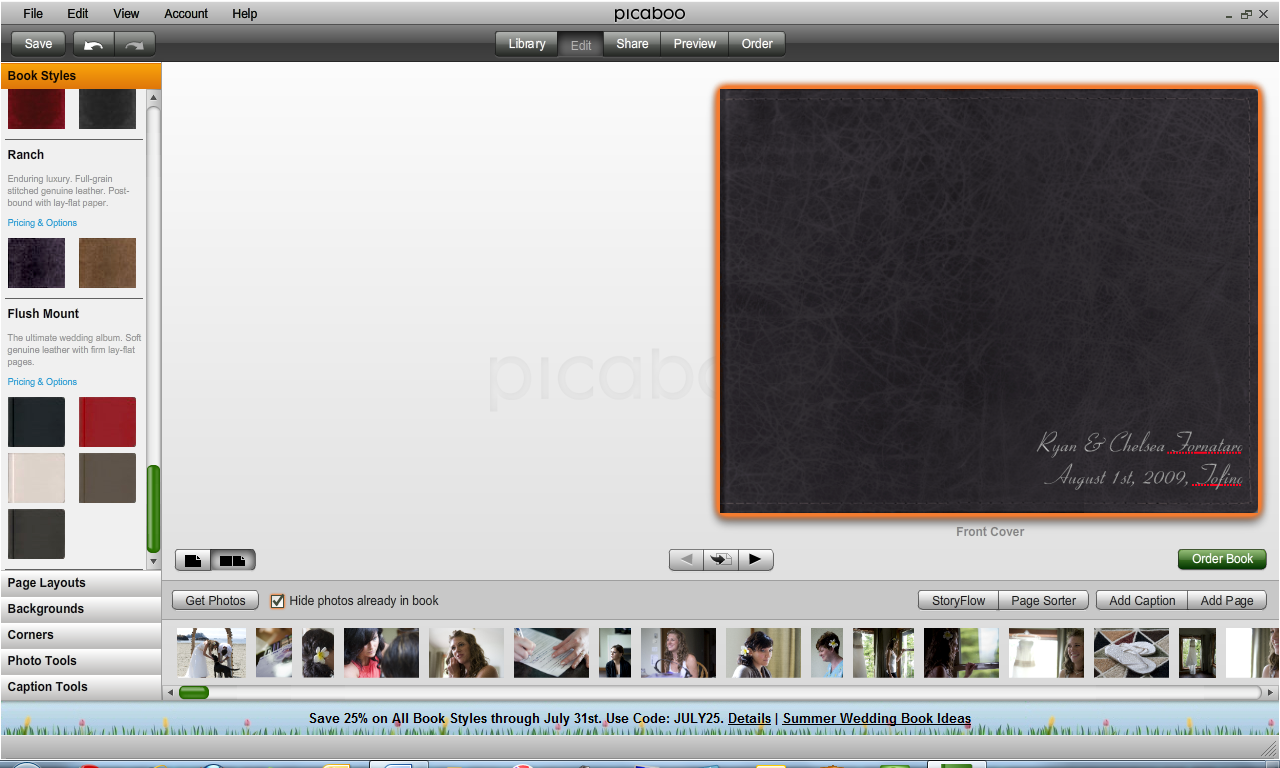
Figure 8: Live cover previews: Nice! [Click the image above for a larger version]
Picaboo X is attractively designed, easy to use software. The first step is to select the style of book you want; the software helpfully gives you a photo-realistic render of the cover, so when I selected the black Ranch style, I immediately saw what it would look like (Figure 8).
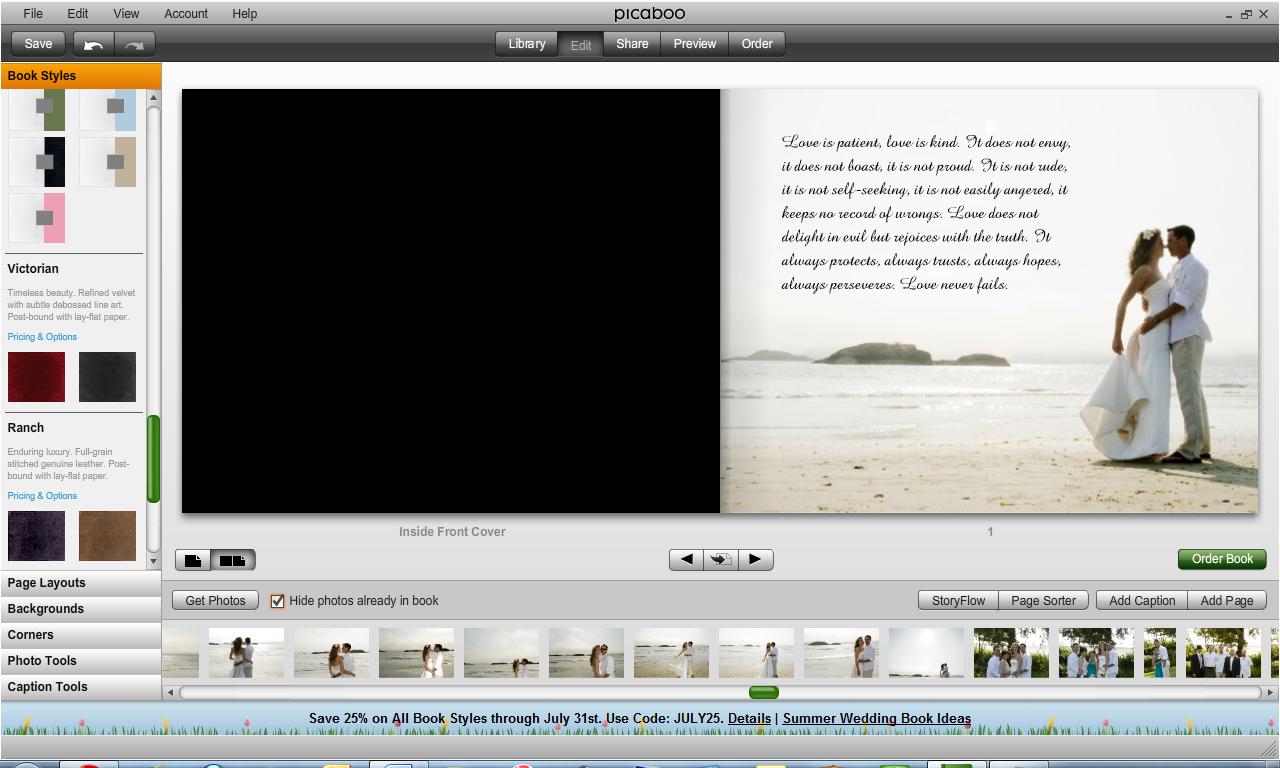
Figure 9: Text can be added to the page. [Click the image above for a larger version]
All of the tools for building the book are in the left column:
- Book Styles: Selecting a different book style gives you an immediate change in the cover preview. Default text is placed on the cover, so you can alter it immediately and depending on the book style, you have a few different options for the colour and placement of the text. I opted for silver text in the bottom right corner.
- Page Layout: There are dozens of different layouts for one photo, two photos, three photos, four photos, five or more, and captions only. Each option is a one-click way to generate a visually interesting layout on your page. You simply drag and drop a photo into each frame. With some of the layouts, I didn't feel like the images were big enough on the page; Picaboo and I have different opinions about the amount of negative space needed on a page.
- Backgrounds: You want backgrounds? You've got backgrounds! In addition to picking any colour you want, including the ability to use an eyedropper to pick a colour from one of your images, there are over 12,000 background images to chose from. Yes, that's right over twelve thousand. I've never seen a selection this big, and Picaboo makes them easy to sort through; you can search by key word, browse by theme, by designer, look at the ones that are most viewed, backgrounds that were recently used, and browse favourites that you tag.
- Corners: A bit too cheesy for me to probably ever use, corners are a staple of any classic scrapbook design, and Picaboo offers a couple of dozen. Given their sheer number of backgrounds, I'm a bit surprised they don't offer more.
- Photo Tools: There is a variety of adjustments that can be made to photos in your book. Images can be zoomed-in, then moved around inside the photo frame. Images can be put on top of each other, or sent backward, allowing you creative options in your layout. Image adjustments can be made via brightness, contrast, and saturation; there are one-click toggles for black & white or sepia effects. The image adjustments are quite crude (which I'll get into later). Image borders can be toggled off or on, and the colour of the border can be selected, but you can't control the thickness of the border. Drop-shadows can be toggled off or on. There's also a red-eye removal tool.
- Caption Tools: Using the caption tool, you can select any font loaded on your system, and control the font size (including bold, italics, and underlined), alignment, colour, and the background colour of the caption box, including an opacity slider. The opacity slider in particular allows for some creative options.
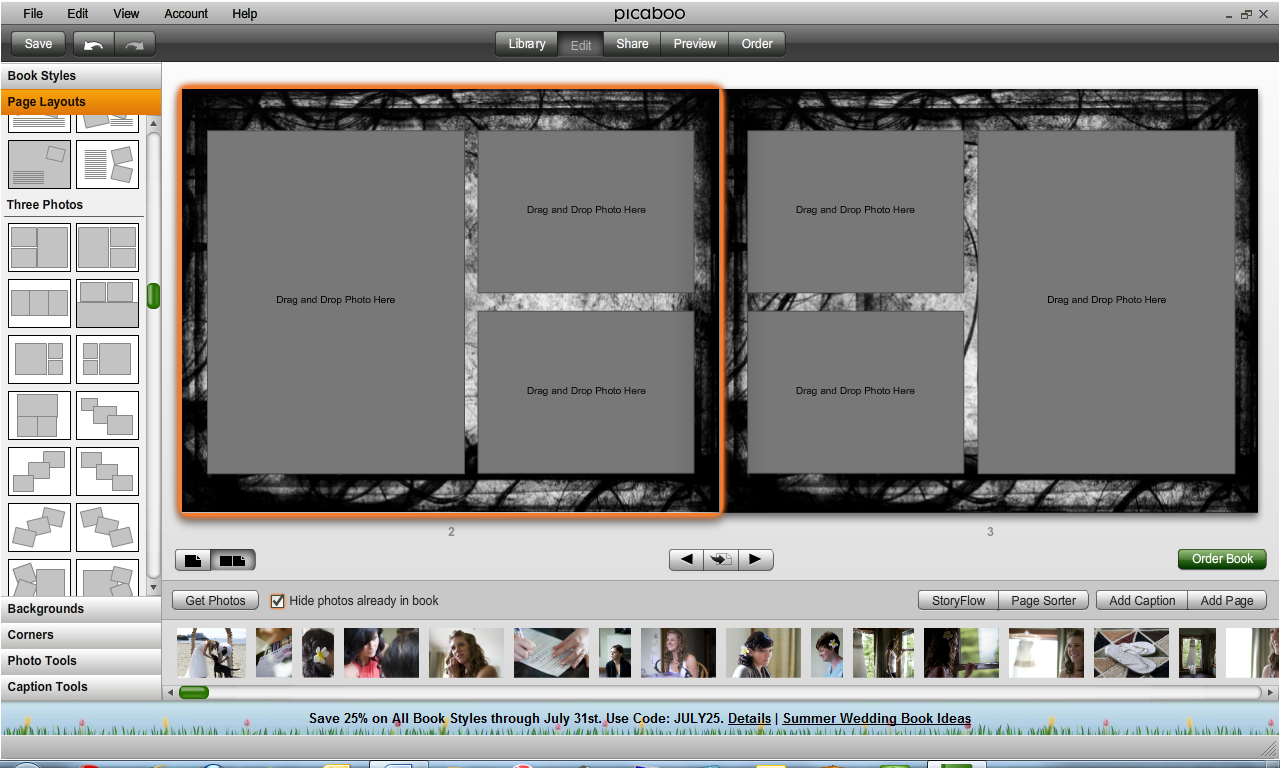
Figure 10: An example of a three-image page layout on each page. [Click the image above for a larger version]