


Friday, October 17, 2008
The Swiss Army Knife of Video Encoding: TMPGEnc 4.0 XPress
Posted by Jason Dunn in "Digital Home Software" @ 07:00 AM
Step Three: Encoding The Video
After setting up my video file, I started the encode. If you're not sure what your final result is going to look like, there's a preview tool that will let you see how your crop and effects were applied - it's quite useful to make sure everything is good to go. In my case, it was already good to go, so I started the encoding process. The first pass analyzes the video file, and I saw is happily using up over 80% of my CPU. After the first pass it begins the encoding process, where again I saw 80% to 90% of my quad-core CPU being utilized. That's the way every video editing/encoding application on the market should work - Pinnacle Systems in particular should be downright ashamed of their Studio 12 product which barely uses 10% of the total CPU power when encoding to h2.64.
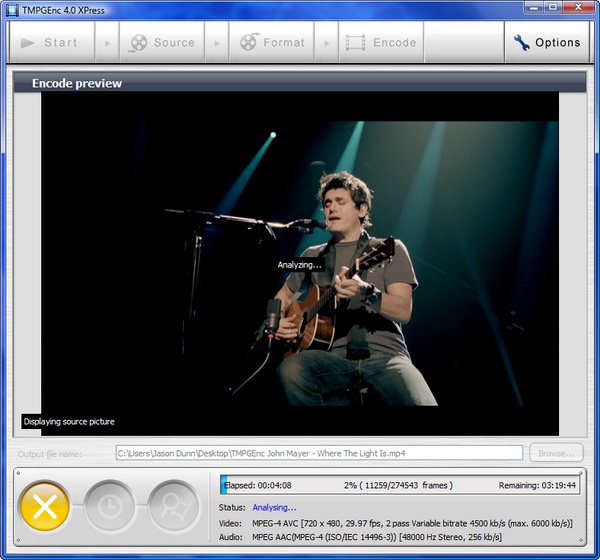
Figure 6: The encoding window gives you a preview of the video output, and an accurate measurement of how long it's going to take to complete.
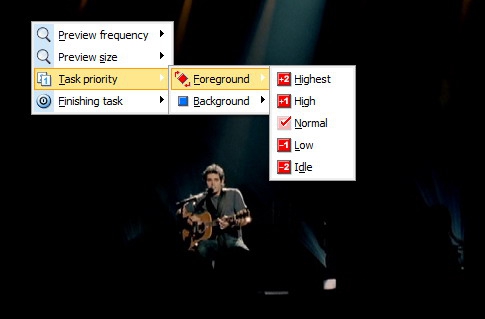
Figure 7: When the encoding is running, you can select the priority, whether or not there's a preview of the encoded output, and even what happens when the task is finished - like having the software shut down your computer.
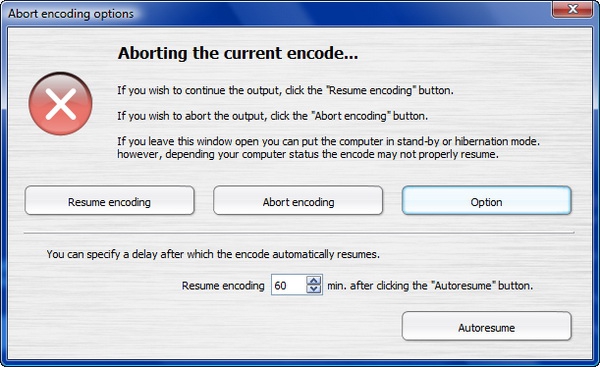
Figure 8: Even the abort window for cancelling an encoding process gives you some options - if you want, you can simply delay the encoding process for a certain number of minutes, after which it will automatically resume. Slick!









