


Tuesday, September 7, 2010
The Seagate FreeAgent GoFlex Ultraportable Family of Products
Posted by Chris Baxter in "Digital Home Hardware & Accessories" @ 07:00 AM
Putting Media in its Place: The TV
The last accessory I got to look at was the FreeAgent GoFlex TV HD Media Player. This device allows you play just about any popular media format on your TV/Entertainment center. Here is a quick breakdown of those formats:
- Video: MPEG-4 (Xvid); MPEG-2 (VOB/ISO); Xvid HD; DivX HD+; MPEG-1; AVC HD; TS/TP/M2T; RMVB Real Media; DivX®; VC-1; M2TS; WMV9; H.264; MKV; MOV; AVI.
- Audio: WMA Pro; WMA; Dolby® Digital; ADPCM; FLAC; AAC; ASF; DTS; LPCM; OGG; WAV; MP3.
- Photo: JPEG files (up to 20 megapixels); MJPEG; BMP; TIFF; PNG; GIF.
The GoFlex TV HD can connect with the FreeAgent drive via one of two methods; the simplest and most reliable involves plugging the drive directly into the device itself. The front of the device opens up to reveal a bay where the drive can plug into. Unfortunately the drive sticks out so that you cannot close the front of the device while the drive is installed. Aesthetically speaking, it would be nice if the GoFlex HD TV completely enclosed the drive.
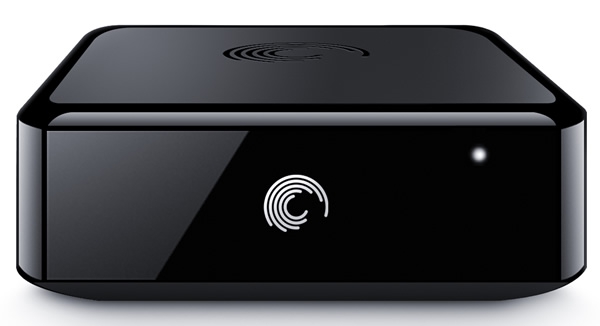
Figure 5: The FreeAgent GoFlex TV HD.
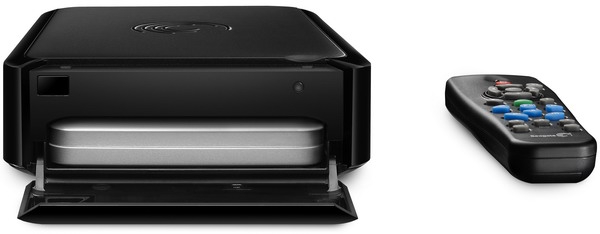
Figure 6: The GoFlex TV HD with drive innseted and remote.
The other way to connect the FreeAgent drive is through the GoFlex Net Media sharing device. There is an option on the Pogoplug site that allows the them to talk to each other. The GoFlex TV HD can connect to your entertainment system using HDMI 1.3, component cables, or composite cables. It has an optical port for connection to your stereo, a network jack, and two USB ports for additional portable storage devices. There is an optional Wi-Fi adapter that you can purchase for $50, it supports the wireless N protocol which is fast enough to handle video streaming, but honestly when it comes to video streaming, using a wired connection to your router will provide a much more stable connection overall. At $130, the price is fairly competitive, there are cheaper devices out there that do pretty much the same thing, but they tend to not have the Internet features that the GoFlex TV HD has.
Besides being able to handle the more popular video, audio, and picture formats, the device allows you to access services like Netflix and Picasa if it is connected to the Internet. The GoFlex TV HD comes with a set of component and composite cables, but sadly no HDMI cable. Luckily, I had an unused HDMI cable on hand, and used it to hook the device up to my TV. The GoFlex TV HD boasts being able to handle video at 1080p, if I was going to put this thing through its paces, HDMI was pretty much my only option.
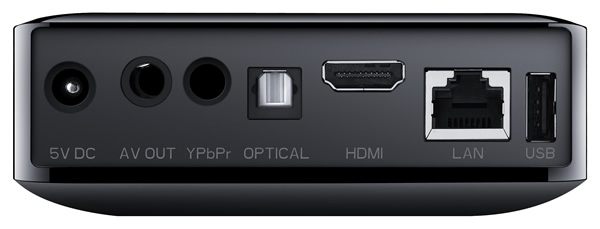
Figure 7: A view ofall the ports on the back of the GoFlex TV HD.
After connecting it to my TV, network, and power; I turned it on and waited through a short boot up to begin testing the device. When it was done booting my eyes were greeted with a home screen full of options. The home screen was presented in low definition with a very simple yet uninspired layout. Considering that this device was capable of 1080p video, I wondered why the home screen was 480i. This did not seem right, so I figured there had to be a setting menu somewhere that would allow me to fix this. The home screen itself is laid out in three rows. The top row consisting of icons for Movies, Pictures, Music, Internet, and Browse. The middle row of icons were for Netflix, YouTube, Mediafly, vTuner, Picasa, Flikr, and an arrow indicating more selections were available. The bottom row had icons for accessing any hard drives attached to the system, the local network, and any media servers that might be running on the network.
The home screen seemed to include everything except a settings menu. Looking at the remote, I noticed a menu button on it. Pushing this button brought up a dropdown row of icons at the top of the screen. These included Home, Movies, Pictures, Music, Internet, Browse, Settings, and Help. Selecting the settings icon brought up a new screen on which I was able to find the video settings and change the video output from 480i to 1080p. The settings screen also included settings for audio, firmware, networking, and system. Exiting the settings screen brought me back to the home screen which looked a lot sharper at the higher resolution that I had just set.
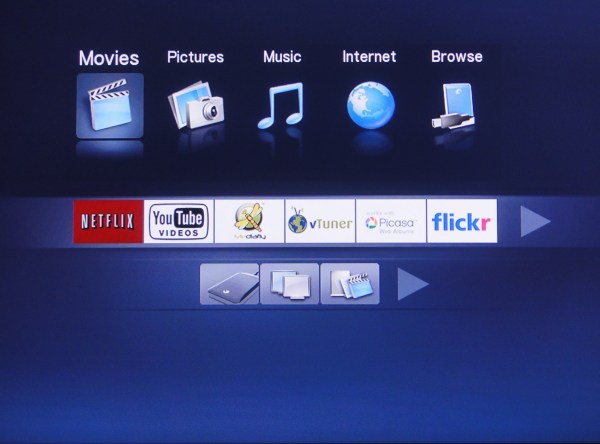
Figure 8: The Home screen at 1080p resolution.
The GoFlex TV HD came with a CD containing Media Sync software for PC and Mac, Video Thumbnail Creator software, and the user guides. I installed the Media Sync and Thumbnail Creator software on my PC and attached the GoFlex drive. The Media Sync software scanned my PC and copied all my movies, pictures, and music to the drive. When this was done I used the Thumbnail Creator software to scan my video folder on the GoFlex drive and create thumbnail pictures for all the videos it found there. When this was done, I plugged the drive into the GoFlex TV HD and selected the Movies icon from the home screen. This took me to a new screen that listed all my movies and used the thumbnails it had just created as icons for the movies.
I should note here that, for some reason, not all the thumbnails that were created showed up on the screen. Most of them did, but for some reason some of the video files just showed a generic icon instead of the thumbnail. To attempts to fix this, I removed the drive from the GoFlex TV HD and plugged the drive back into my PC. after verifying that all of my video had thumbnails created for them, I ran the Thumbnail Creator again hoping that it would fix the issue. This was not the case though. When I plugged the drive back into the GoFlex TV HD and looked at the movie screen again, I found that nothing had changed. Another thing to note here is that the Thumbnail Creator will only work with the more traditional video formats. It will not work with .VOB DVD files or .ISO files.
GoFlex TV HD plays just about every popular video file out there and it does a good job of it. Hi-definition content looks great, but because it does not upconvert, the low definition video receives no benefits. The GoFlex TV HD handles music and picture files equally as well. The Pictures screen lists all your photos by thumbnails of the actual picture, and music is listed with the album art, provided you have the album art for your music. If you press the menu button on any of the media screens, you get sort options for the particular media screen you are on. The music and photo sort options are pretty much the standard ones you will find with any media player.









