


Monday, April 13, 2009
Mezzmo: The Ultimate Home Entertainment Software
Posted by Chris Baxter in "Digital Home Software" @ 07:00 AM
The Joy of Streaming
So now that I was done organizing my media and checking out the program, I decided it was time to see how well it could stream media to different devices. Namely my Xbox 360, Sony PS3, and my Dell XPS M1210 laptop.
XBOX 360
First up, I decided to try connecting Mezzmo to my Xbox 360. To do this I brought up the Quick Start menu by going to the tools menu and selecting Quick Start. I then chose the Configure Media Sharing button and was presented with the following screen:
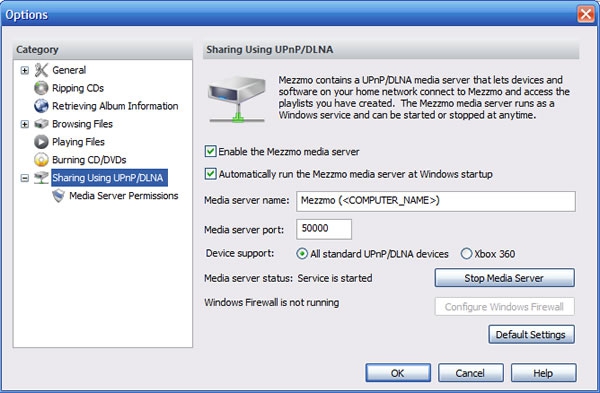
Figure 4: This dialog box gives you all the available options for configuring media sharing.
Seems simple enough right? So I selected the Xbox 360 under the Device support option and clicked the OK button, the program then proceeded to tell me that it needed to restart the media server to apply my changes. I gave it my consent and a minute later it was back up and running.
The next part was really simple: I turned on my Xbox 360. That's the only other thing that was needed. I navigated my Xbox to the video selection and there was an option for Mezzmo. Selecting Mezmo gave me a list of all the videos that it had found on my PC . I tested several different videos of varying length and quality and Mezzmo was able to stream everyone of them with no problems.
Having finished playing around with videos I decided to move on to music. Selecting Mezzmo in the music area of my 360 presented me with a list of ways I could view my music. You know, the usual stuff, such as by artist, album, genre, or any of the playlists that have been created. This enabled me to find the music I wanted to listen to quickly and efficiently. Mezzmo had no problems streaming music to my Xbox, even while playing games online. It's nice having my entire music library at hand to replace a repetitive game soundtrack with.
Viewing photos was pretty much the same process as with videos or music. I just went to the photos section of my Xbox 360 and chose the Mezzmo server. The photos lined up on the right side of the screen showing thumbnail images of the pictures themselves. I could view the photos individually by slecting their thumbnails or I could view all the photos in a slide show. The overall ease in which I was able to access my media with the Xbox was great. Now I was anxious to see how everything looked when I used my PS3 to access it.
Sony Playstation 3
To get Mezzmo to connect to my PS3 I had to go back into the media sharing configuration window and change the device support option to All standard UPnP/DLNA devices, which of course prompted the media server to restart. This is kind of annoying, given the fact that I own both consoles. It would be nice if I didn't have to change settings and restart the server depending on what device I want to use for my media playback at any given time.
The overall experience of using Mezzmo on the PS3 was pretty much the same as it was for the Xbox 360 so I won't go into a lot of detail here as I would just be repeating myself. The PS3 offered pretty much all the same options as the 360 did. The obvious differences being in the actual interfaces on the PS3 and Xbox 360. The video performance was the same between the two devices, as was music and pictures. I do think the PS3 interface is slightly more generic because it didn't seem to matter whether I was in the video, music, or photo section, once I selected the Mezzmo server it gave me options to access everything. So far my experience with streaming from Mezzmo to other devices was very positive so I was hoping that it would continue to be so as I moved onto testing it with my laptop.
Dell XPS M1210
The first thing I had to do to get this running on my laptop was to go back to the original install file and run it again, but this time choose the Mezzmo Media Player install. I did not need to change any of the server settings this time because the software uses the same settings as the Sony PS3. The Mezzmo media player installed quickly and did not require a reboot. I always like it when I can install something and not have to reboot my computer. After installation completed I started the program up to see what it was all about. For being a free media player it has a lot of features. It can play music CDs and DVDs, music, video, and picture files stored locally in different types of formats, and stream media from a Mezzmo server. The media player consists of three windows that can either be attached to each other or separated. One kind of looks like the interface on a home stereo system and it displays info on the music or video file being played. The playback controls are also in this window and, as with the server application, if you hover the mouse over any of the controls it lets you know its function. The next one is the playlist window. It shows all the files that have been queued for playback.
The final window is where the video playback is viewed. Right-clicking the mouse in any of the windows brings up a menu with all commands pertinent to that window. By rooting around in the menus I was able to find most of the features found in other commercial media players. I think the folks at Concieva really want Mezzmo to be your one stop shop for everything media. Figuring out how to access my stuff on the media server was fairly simple. You just have to click the Open button on the interface window and choose the Play Network Media option. This brings up a new window wich lists any media servers it can find. After selecting my media server I was able to see all my media. The trick here is to select all the music and video files you want and then click the Add To Mezzmo Media Player buton, which then adds everything you selected to the playlist window. From here all I had to do was select the file I wanted to play from the playlist, sit back, and enjoy my media.
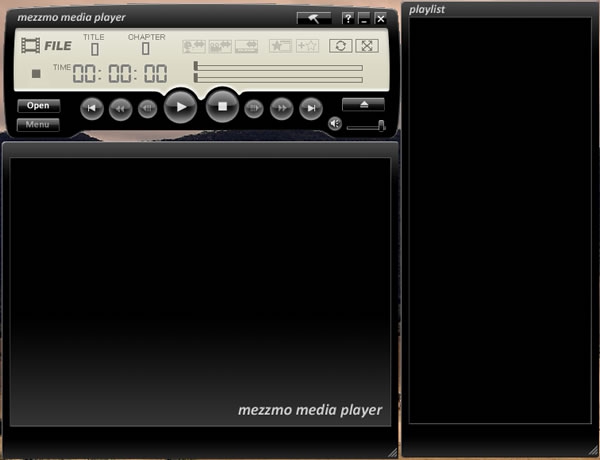
Figure 5: Mezzmo Media Player: Fully functional media player for free.
So now that I had figured out how to stream with the Mezzmo Media Player, the question was: how did it stack up against the Xbox 360 and Sony Playstation 3 experience? Well I have no complaints concerning the quality of the video, music, or pictures that I tested with it. It seemed a little slower in queueing up the stream, but that may have been due to the fact that my laptop connects wirelessly to my network. When all was said and done however, I must say that I preferred using Mezzmo with my Xbox 360 and Sony Playstation 3. The Mezzmo Media Player is adequate, but it just cannot compete with the consoles in regards to their ease of use and overall experience.
Conclusion
Mezzmo is an impressive piece of software. It can organize all of your media similar to programs like iTunes and such. Plus it can also stream media to a multitude of devices connected to your network. Conceiva seems to have a solid support team that monitors their forums and responds directly to user questions. The software is very easy to install and get running, especially when combined with a Sony Playstation 3 or Xbox 360. I don't know if it quite lives up to the mantle of the ultimate home entertainment software, but it does do a great job at trying to be. The price is kind of steep in my opinion, especially when you factor in the state of the economy and that there is some competition in this area, some of which is free. I did run into some issues trying to play VOB video files, but these are being addressed in the next version of the software which is do out soon. Conceiva offers a 15 day free trial of Mezzmo and if you are looking for software like this, I would recommend giving Mezzmo a try.
Chris Baxter is an IT Professional and part time Web Designer who resides in North Aurora, Illinois. Playing video games, watching movies, or reading a good book are what occupies his time when he is not fixing computers or trying to get his hands on the latest gadgets.

Do you enjoy using new hardware, software and accessories, then sharing your experience with others? Then join us on the Thoughts Media Review Team! We're looking for individuals who find it fun to test new gear and give their honest opinions about the experience. It's a volunteer role with some great perks. Interested? Then click here for more information.









