


Wednesday, March 26, 2008
Reviving Your Vinyl: A review of Instant Music from ADS Tech
Posted by Don Tolson in "Digital Home Hardware & Accessories" @ 08:00 AM
Installation
Installation of the SpinItAgain software is pretty automatic – just pop in the CD and a wizard takes care of everything. There's very little to 'configure' at this point, since most of that is left for when you actually do the recording.
As far as the InstantMusic hardware is concerned, hookup is similarly simple and straightforward. As mentioned above, cables for most audio sources are provided.
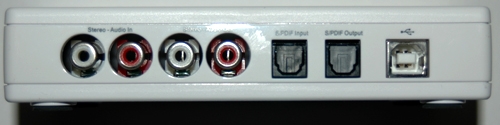
Figure 2: The working side of the IM interface – input and output jacks. From left to right, they include standard RCA stereo phono in/out, SPDIF (digital audio) in/out, and USB power/output.
About the only thing you have to be careful of is that you must have a pre-processed sound source to plug into the hardware. (I.e. You can't directly hook a turntable to InstantMusic's input. The turntable must be connected to an amplifier/pre-amp first, then the 'Line Out' or 'Record Out' jacks on the amp can be connected to InstantMusic's input.) In the case of cassette decks, most better quality ones will have a 'Play Out' jack set that you connect to. If you have no other output available, you can connect the headphone output to the Instant Music input, but be careful with your volume levels and be aware that the quality will suffer, due to impedance mismatches. The interface also provides SPDIF (digital) audio in/out jacks, but I wonder why you'd need this, since if the source is already able to produce digitized audio, why not plug it directly into the computer?
Recording the Source
Once you're all hooked up, it's time to make your first recording for transfer. All of this is done through the SpinItAgain application. The screens shown here are for vinyl records (remember them?) but its the same procedure for cassette tapes, 8 tracks or any other audio source you might have.
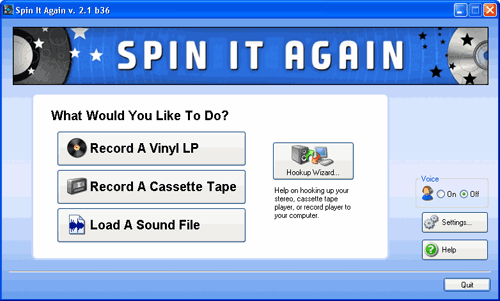
Figure 3: The main screen of Spin It Again.
The first step in recording is to set a consistent input level. SpinItAgain provides a level-setting wizard to do this automatically for you. It's a good idea to use this, since the manual control (see Figure 4) doesn't let you adjust channels individually, nor can you adjust the volume during the actual recording (see Figure 5). Basically, the wizard has you play a portion of the source recording (preferably the loudest bits), during which it takes about a 25 second sample, then sets the recording level appropriately.
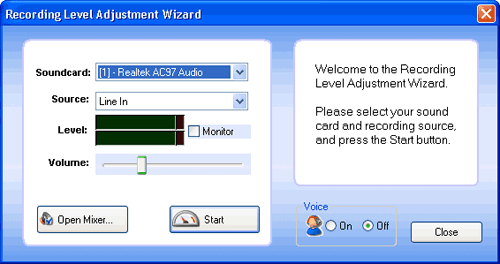
Figure 4: Recording Level Wizard
Once the recording level has been set, you're good to go. For commercial records produced in the last 50 years (yes, that's since the 60's!), I would recommend you use the same setting for both sides. Most record manufacturers will set the output levels of each track to provide consistent volume levels for the listener. For my test, I selected alive recording of a 60's folk trio called The Limelighters. Live concert recordings are hardest for recording engineers and track-detection software, since the volumes levels change frequently and widely, and there is often banter in between songs that's difficult to split between tracks.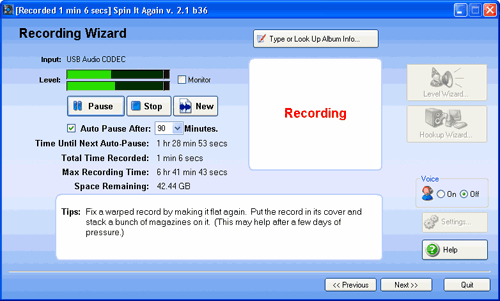
Figure 5: Recording the Album.
During the recording process, SpinItAgain supplies helpful hints for correcting common problems with records and tapes. Some of the suggestions brought back nostalgic memories, but you have to be careful with them. (For example, see the one mentioned in the screenshot above for making your records 'flat' again!) One, for instance, suggested using coins to alter the tracking weight of the stylus, to prevent skipping. That might have been OK with your great-grandmother's gramophone with a nail for a needle, but any stylus built after 1970 usually has a tracking weight of less than 2g and the weight of any coin would destroy it and the record.
While recording, you can also supply album information, such as title, artist, year and genre.
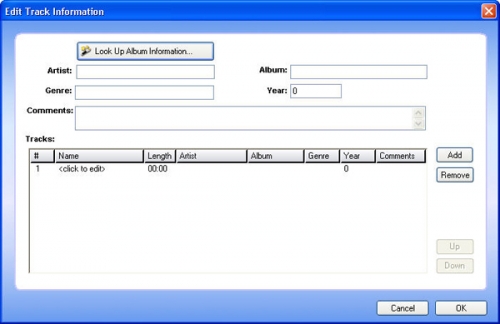
Figure 6: Supplying Album Info
A button available on the screen suggests that SIA can access an Internet database to get additional info (maybe the song titles?) but it didn't work for my test album. Maybe it just needs something a little more recent...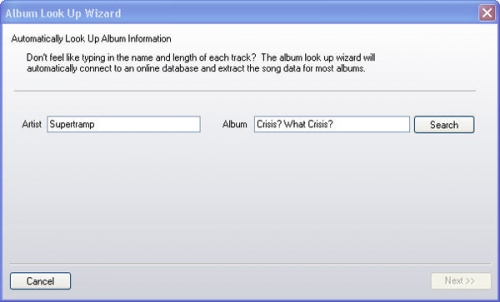
Figure 7: I tried the Album Search with something a little more recent, and this time, it was able to come back with the individual song track titles.
One of the neat features of SpinItAgain is a PAUSE button, which allows you to get both sides of a record into a single recording. This is useful, since during the editing process, you can work on a single file to create the entire album, rather than having to go through the process time, then trying to blend them together.
SpinItAgain stores the recording as a WAV file, which supposedly could be used to edit at a later time, but I couldn't find anything in the SIA workflow that would allow me to stop and save at any time to come back and finish later. It seemed to be an all or nothing proposition.









