


Wednesday, September 19, 2007
The Dell XPS M1330 Kingston 4 GB RAM Upgrade
Posted by Jason Dunn in "HARDWARE" @ 07:00 AM
Making the Jump From 2 GB to 4 GB
The price of RAM upgrades from Dell has always been outrageous, so I opted to give my friends at Kingston a call after my M1330 showed up - they sent me 4 GB worth of their DDR2/667 laptop memory, two sticks of 2 GB each. The RAM currently retails for $200 USD per stick, so that's $400 worth of RAM. Would it improve the performance of my XPS M1330? I've always felt that 2 GB of RAM was the "sweet spot" for Vista - would more make any difference?
Installing the Kingston RAM
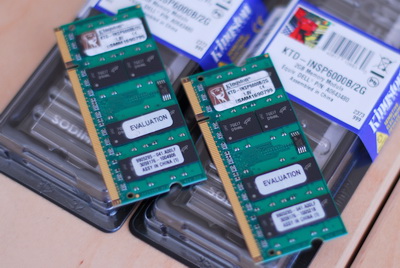
Figure 1: $400 worth of Kingston RAM. Tasty!
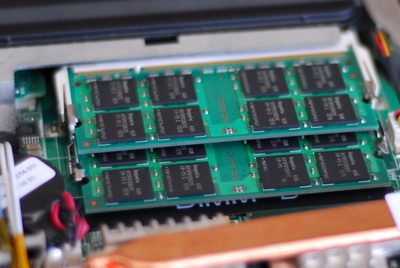
Figure 2: Step one was to remove the back panel on the XPS M1330. This is what I saw: two Hynix-branded 1 GB modules.
A word about the RAM on the XPS M1330: the entry-level configuration of the M1330 on Dell.com has 2 GB of RAM. In Canada, it's offered with 1 GB of RAM, and moving up to 2 GB costs $100 CAD extra ($96 USD). With Dell.com, it costs $375 USD extra to move from 2 GB up to 4 GB. Ordering from Dell Canada, it would have cost me $400 CAD to upgrade from 2 GB to 4 GB, which is about $375 USD. So as you can see, the upgrade price costs nearly as much as buying 4 GB of RAM from Kingston - the difference is, if you upgrade after the fact you end up with two 1 GB modules that you can sell or use in another system. It just doesn't make any sense to upgrade direct from Dell.
The prices work out almost the same for the hard drives (which I wish I had thought about) - moving from the 160 GB, 5400 RPM drive up to a 200 GB, 7200 drive costs $200 USD. Ordering a Hitachi 7200 RPM, 200 GB hard drive from NewEgg costs $205 USD - and you end up with a spare 160 GB drive. Dell is certainly making a healthy profit on their upgrades, but the flip side is that your laptop warranty can get complicated if you've upgraded multiple components on your own.
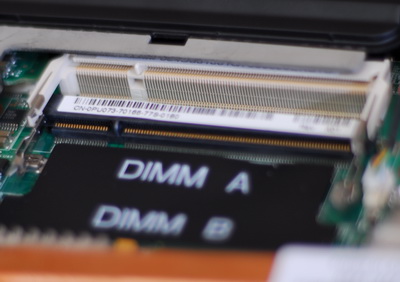
Figure 3: After removing the default RAM, I can see how easy Dell makes it to upgrade the RAM: they've even labelled the slots.
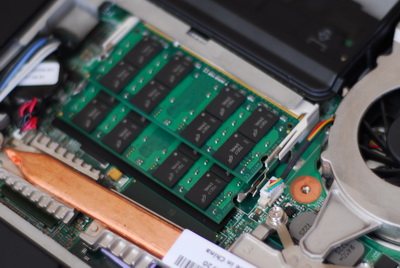
Figure 4: Snapping in the 4 GB of Kingston RAM took only a few seconds.
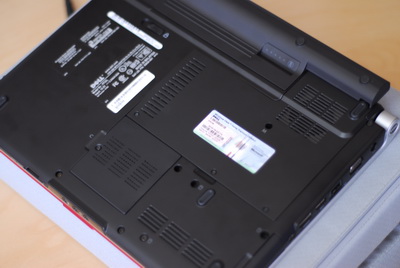
Figure 5: Putting on the back panel of the XPS M1330.

Figure 6: I was a bit worried that something went wrong with the upgrade, because I was staring at this screen for quite a while - the progress bar was going very slowly.
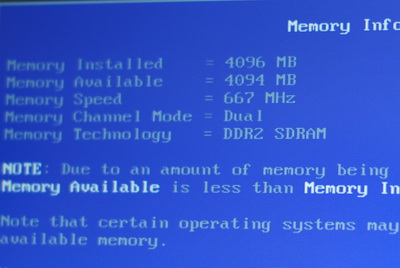
Figure 7: I wanted to see how much RAM the system reported outside of Windows Vista, and this photo shows the answer: all 4096 GB of it!
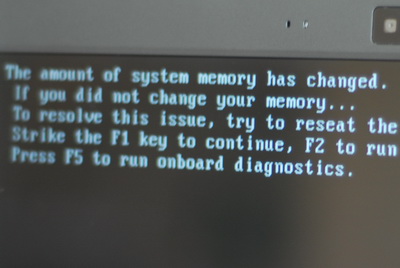
Figure 8: The XPS M1330 telling me that the RAM had changed.









